Shopify WhatsApp Automation Checklist
A fast Shopify automation checklist to connect WhatsApp, approve Meta templates, publish cart recovery, turn on COD paths, and open a shared inbox.
Use this checklist to stand up Shopify automation on WhatsApp without a three-month project. Most stores finish the technical connect quickly; Meta template review is the usual wait, so submit templates on day one. Context for the full stack: WhatsApp automation for Shopify.
Fifteen-minute technical connect
- Connect Shopify OAuth (carts, orders, catalog permissions)
- Add WhatsApp Cloud API / WABA credentials
- Verify the sending number and display name match your brand
- Invite CX and growth seats to the workspace
- Confirm test events: cart updated, order created
Details live on integrations and the Shopify WhatsApp integration page.
Templates to submit before you publish journeys
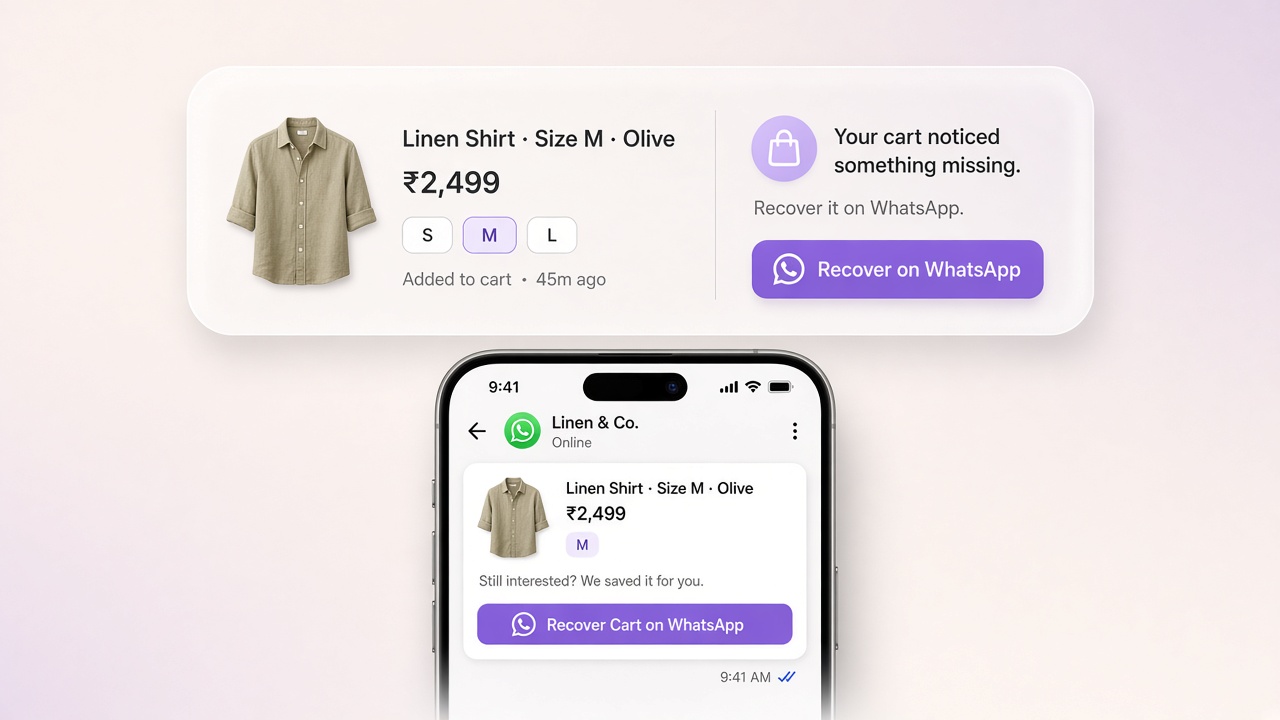
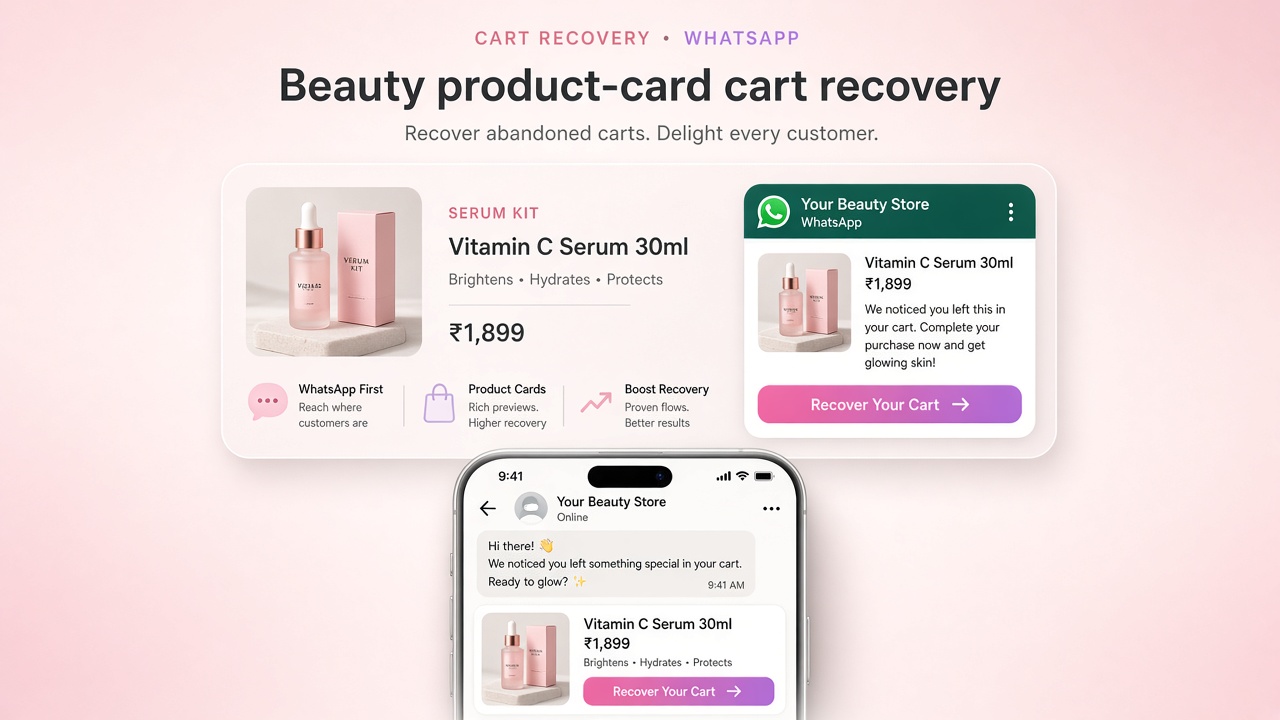
- Abandoned cart reminder (1–2 variants)
- COD confirmation with confirm / reschedule / cancel language
- Order placed / shipped utility updates
Track approval in Meta Manager. Do not publish live sends on PENDING templates.
Tip: Submit templates the same hour you connect Shopify. Parallelize review time with inbox training and journey drafts.
Publish the first revenue journeys
- 3-step abandoned cart sequence gated on APPROVED status. See the cart recovery playbook
- COD confirmation for payment_method = COD
- Basic shipped / out-for-delivery update
Build these in Journeys; add branches later in Flow Builder.
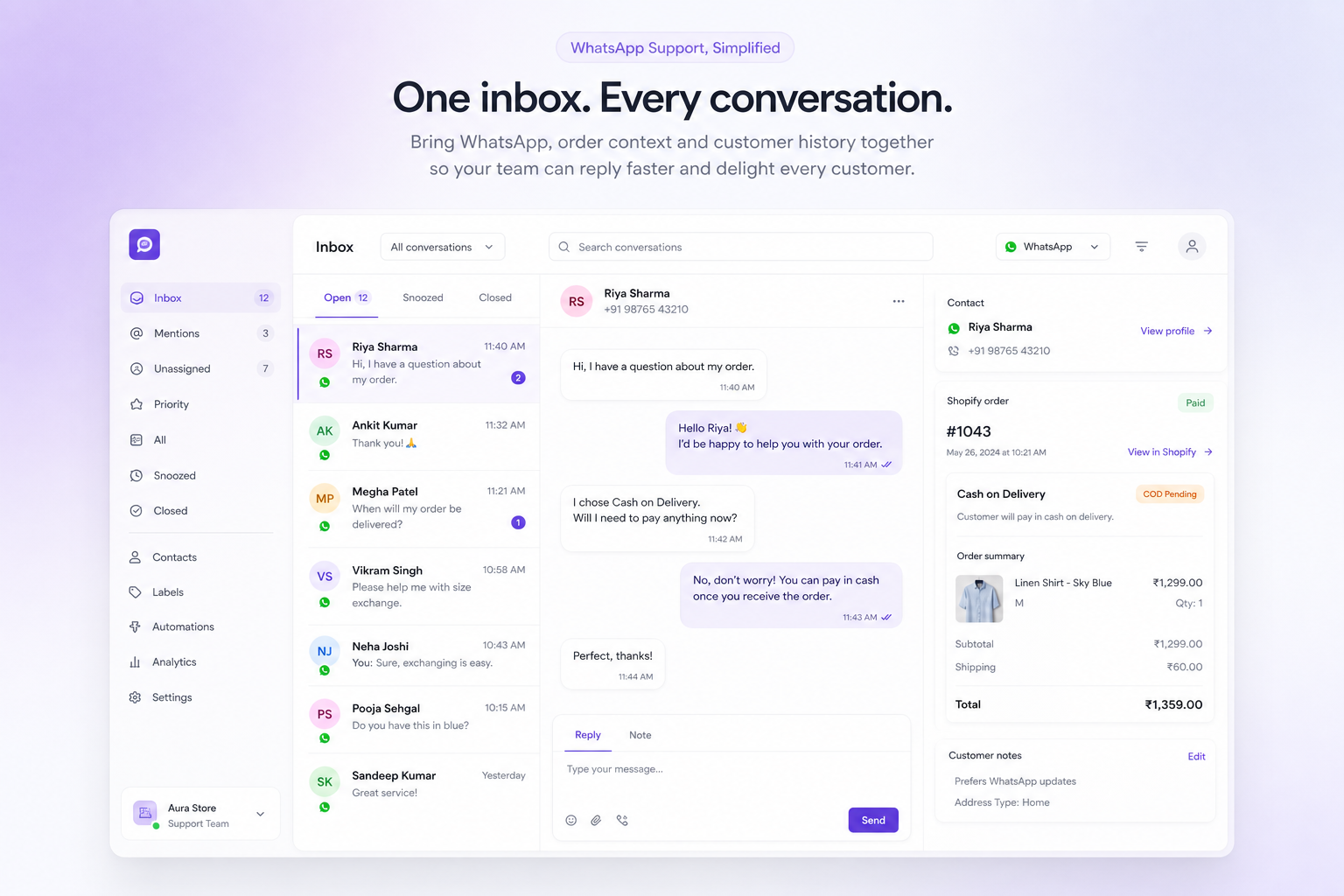
Open the shared inbox the same day
- Routing rules: sales hours vs after-hours
- Macros for COD and shipping
- AI FAQ on, purchase-risk intents off until you trust grounding: AI Brain
- Team trained to pause automation on takeover: Live Chat
Go-live checks before paid traffic
- Send yourself a cart recovery end-to-end
- Place a test COD order and walk confirm → fulfill
- Break a link on purpose once; confirm monitoring catches it
- Document the no-reply COD hold policy for warehouse
For the wider operational picture beyond WhatsApp — inventory, support, fulfilment handoffs and cross-system sync — see how to automate your ecommerce store in India.
Prioritize what comes next with what to automate first. See pricing, social proof on customers, or contact for onboarding help.
Common questions
What should I set up first when automating Shopify WhatsApp?
Connect Shopify and WhatsApp, get order-status templates approved by Meta, then publish the order-placed journey. Order updates are transactional, need no marketing consent, and customers expect them — which makes them the safest first automation. Cart recovery comes next, once storefront tracking is capturing phone numbers.
How long does Shopify WhatsApp automation take to set up?
The technical connection is roughly 30 minutes if you already have a WhatsApp Business Account on the Cloud API. The variable is Meta template approval, usually minutes but up to 24 hours on a first submission, so get templates approved before the day you intend to go live.
What blocks a WhatsApp journey from sending?
In order of likelihood: the journey is still a draft rather than published, the template it uses is not approved at send time, trigger filters exclude the customer, or the order has no phone number in international format. Checking the skip reason recorded against the order names the actual cause.
Do I need storefront tracking for cart recovery?
Yes. Cart recovery only works when the abandoned checkout arrives with a phone number, and that is captured by the checkout extension. Adding to cart alone never produces one. If you use a third-party or one-page checkout, you need that provider’s webhook instead, because Shopify checkout extensions do not run there.